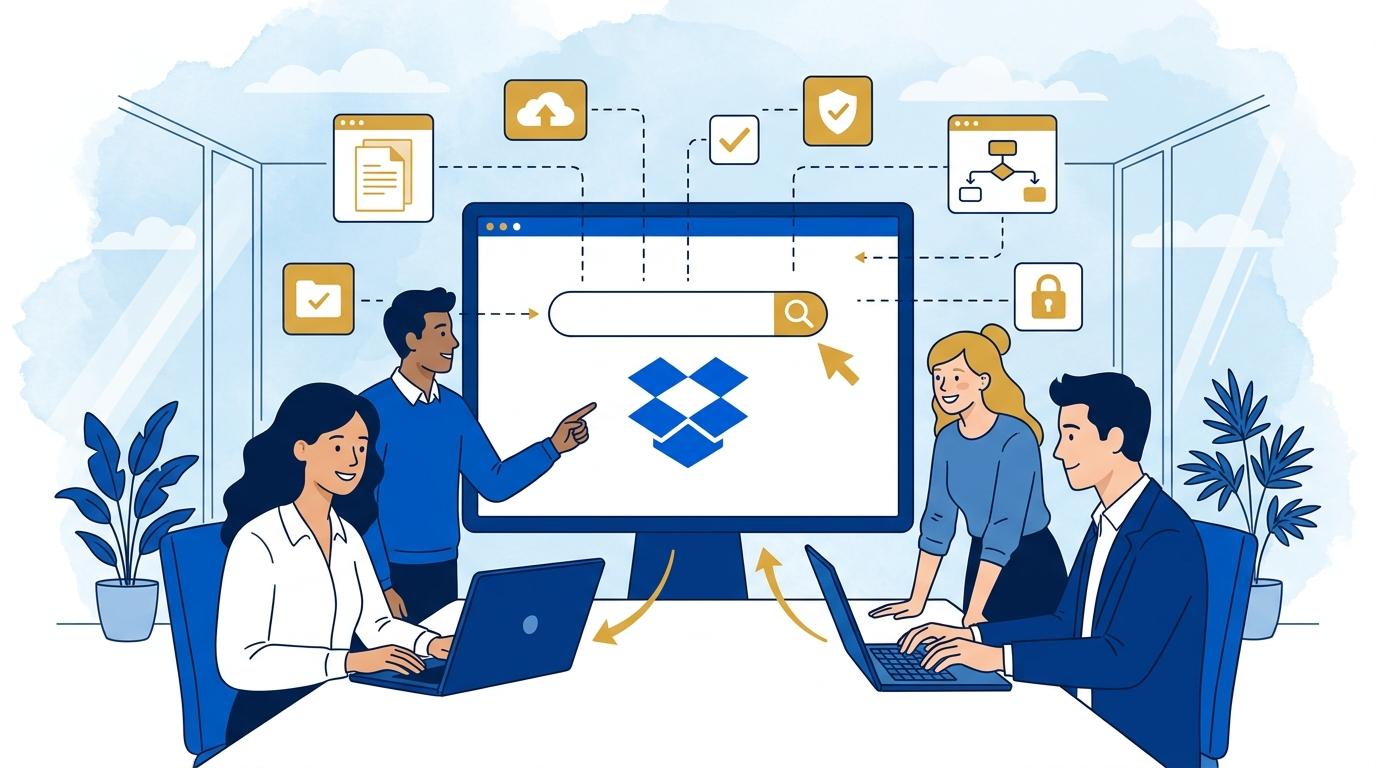
The first day at a marketing agency often means facing a maze of files, wikis, emails, and various tools used by the team. New employees are challenged to quickly find all the necessary project materials—without knowing the folder structure or where documents are stored across multiple apps. Dropbox Dash, as a smart search assistant, was designed to solve exactly this problem and shorten the time needed to get up to speed with new responsibilities.
This post demonstrates how Dropbox Dash lets a new member of a marketing team instantly access project documentation, presentations, briefs, and communications—regardless of where they are stored. We’ll cover specific use cases, step-by-step workflows, and limitations of this service in everyday agency work.
Dropbox Dash: centralized search for project documents in a marketing agency
Dropbox Dash enables searching for files and information from multiple sources in one place, which is especially helpful in environments where project documentation is scattered across clouds, emails, and communication tools. A new employee, after logging into Dash and connecting their relevant accounts (e.g., Google Drive, Microsoft 365, Slack, Gmail), can search for campaign briefs, timelines, or up-to-date presentations within seconds.
A typical workflow includes:
- Logging into Dropbox Dash and connecting the agency’s commonly used accounts in a single setup.
- Entering keywords related to the project, such as a client or campaign name.
- Receiving organized results not only from Dropbox but from external platforms as well.
A limitation is the need to have access to the connected sources and permission to view specific folders or channels. Dropbox Dash does not permit searching through files a user does not have access to, nor does it support every possible application on the market—the integration list should always be checked in the Dropbox documentation.
How does Dropbox Dash shorten onboarding time for new project team members?
With Dropbox Dash’s centralized search, a new employee doesn’t need to ask the team for the location of presentations, reports, or the client communication history. A keyword search is enough for Dash to suggest files, emails, calendar events, or notes related to the topic.
During the first hours on the job, a user can:
- Search for “brief + client name” and immediately find the latest materials across Dropbox, email, and Google Docs.
- Check which files were most recently updated for the project.
- Quickly scan project-related conversations from Slack or any other connected tool.
The result is much faster onboarding and less confusion in the first days at work. The limitation, of course, is the level of integration between Dash and the tools used by the company—if the agency uses a very niche system not supported by Dash, its content won’t be searchable via this tool.
Dropbox Dash in action: finding the latest versions of creative assets
In a marketing agency, file versions—from graphics to presentations—often change, and a new employee may struggle to determine which one is the latest. Dropbox Dash makes it easy to find the most recently edited assets related to a given project, regardless of whether they’re stored on Dropbox or in integrated third-party tools.
Sample scenario:
- The new employee enters the campaign name in Dash and searches for terms like “final,” “latest,” or “approved.”
- Dash displays files from Dropbox and Google Drive, showing the most recent modification dates and folder locations.
- The user quickly identifies the correct file without opening dozens of folders or asking colleagues for help.
One limitation is that Dash doesn’t manage file versioning—it displays files by date and location, which helps users orient themselves among the available versions.
Automatic suggestions in Dropbox Dash: fast search without knowing the file structure
One key feature of Dropbox Dash is its intelligent suggestions as you type. A new employee doesn’t need to know full folder names or paths—by entering a fragment of a client’s name or document type, Dash automatically suggests related materials, meetings, chat threads, or calendar events.
How it works in practice:
- An employee types in “presentation” or “client X.”
- Dash suggests files matching both keywords, even if they aren’t together in the file name.
- This allows a new team member to quickly identify which resources are most important for the project.
The limitation: suggestion accuracy depends on the quality of file descriptions and naming—if the archive is chaotic, suggestions may be less relevant.
Dropbox Dash in a marketing agency: integration with daily work tools
Marketing agencies typically use many applications—from office suites and communication tools to project management systems. Dropbox Dash lets you unify search across:
- Dropbox
- Google Workspace (Drive, Docs, Gmail, Calendar)
- Microsoft 365 (OneDrive, Outlook)
- Slack
- and other selected applications
To use this feature, the employee must connect their accounts to Dropbox Dash and authorize access. Integrations can change—the current list should always be checked in the product documentation. Company security policies may also restrict full integration of all tools with Dash.
Summary
Dropbox Dash is a real support tool for new hires in marketing agencies—enabling them to quickly find essential project documents, even if scattered across various systems. It saves team time, reduces information chaos, and minimizes errors from working on outdated files. If you want to learn how to implement Dropbox Dash efficiently and improve onboarding for your new employees, reach out to the Fixtra team.