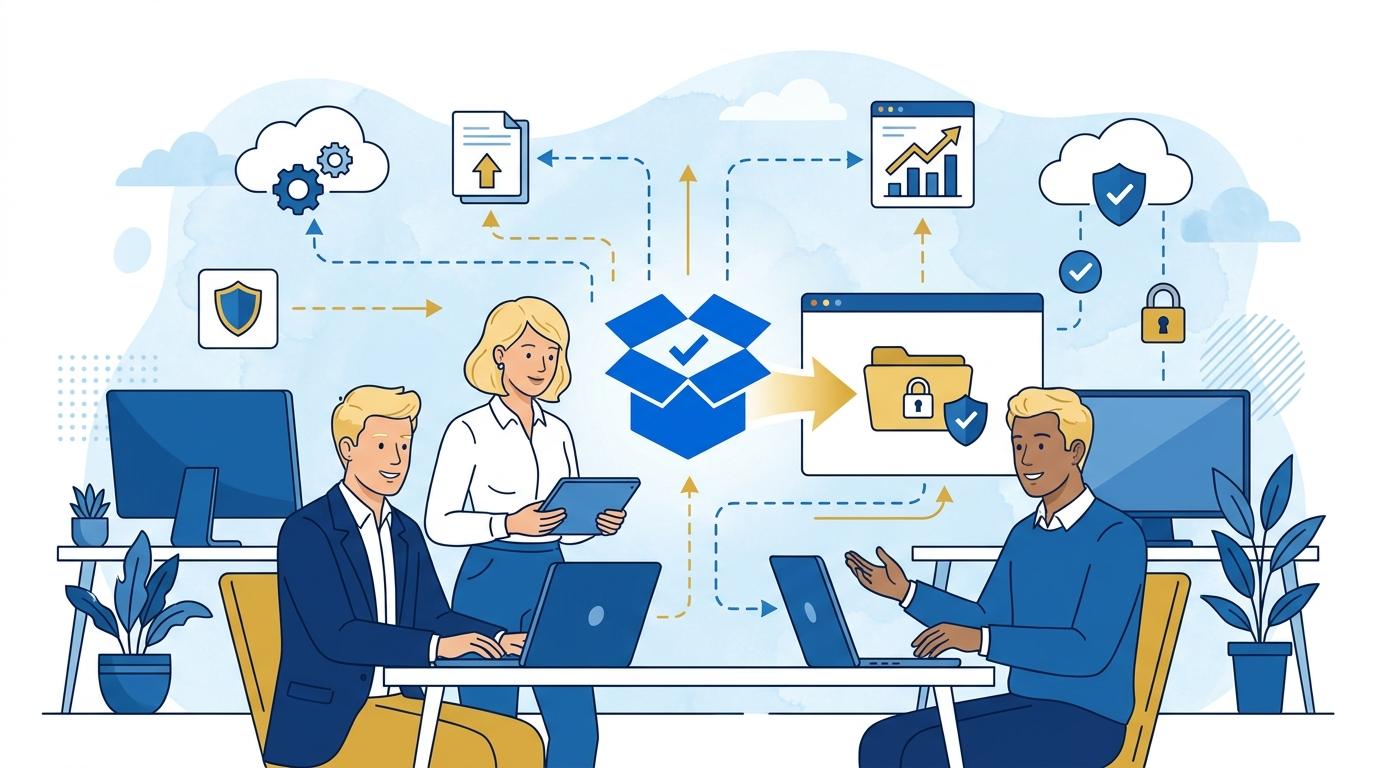
In a tech startup environment, there is often a need to efficiently deliver completed project materials to a client, partner, or external team. These are usually large file sets, such as technical documentation, source code, visual assets, or test app builds. Dropbox Transfer is a tool that allows IT administrators to deliver these files precisely, without the risk of unauthorized access to the company’s entire cloud workspace.
This post will show how Dropbox Transfer addresses the key challenge of delivering project materials in rapidly growing tech companies. I’ll discuss the workflow, practical applications, capabilities, and limitations you should know before deploying this solution.
Dropbox Transfer – Preparing and Sending Project Materials
Dropbox Transfer lets you generate a package for one-time download, without sharing entire folders or inviting external users into your workspace. The IT administrator starts by selecting the ready files or folders in Dropbox to be delivered to the recipient.
The sending process works as follows:
- Select files or folders to transfer (from the desktop app or web browser).
- Create a transfer using the “Create transfer” option—users can name the package, add a description, and set access options (like link expiration, password protection).
- Dropbox generates a unique link to the package, which can be sent by email or messenger.
- The recipient does not need a Dropbox account—simply open the link to download the package.
This solution eliminates the risk of accidental or overly broad sharing that is possible with shared folders. Limitation: Each transfer has a maximum size, depending on the plan (check current limits on the Dropbox website).
Dropbox Transfer – Access Control and Protection of Project Materials
One of Dropbox Transfer’s key features is the ability to restrict access to sent materials. The administrator can set a password for the transfer and specify a link expiration date. Even if the link reaches an unauthorized person, they cannot access the files without the password.
In practice: Before sending a project to an external contractor, the administrator sets link expiration to 7 days and applies a strong password shared via a separate channel. Once the files are downloaded, the link automatically expires, so there’s no need to revoke access later.
Limitation: The recipient cannot edit, comment, or send files back—the transfer is one-way. This ensures security and file integrity, but if you need feedback or corrections, another Dropbox tool should be used.
Dropbox Transfer in Standard, Advanced, and Enterprise Plans – Differences and Availability
Dropbox Transfer is available in the Dropbox Standard, Advanced, and Enterprise plans, but individual limits and options may vary. For example, the Standard plan supports smaller individual transfers than advanced plans (see the Dropbox website for up-to-date values).
In Advanced and Enterprise, transfers can be additionally monitored by admins, and company security policies may require passwords or expiration for all outgoing packages. This keeps IT in full control of outbound data.
Availability condition: Dropbox Transfer is not available in free Basic accounts or some older plans. Before deployment, confirm your plan covers this feature and meets your size requirements.
Dropbox Transfer Workflow: From Request to Delivery Report
A typical scenario in a tech startup might look like this: The project team asks the IT administrator to securely send a demo app build to a potential client. The admin prepares a Dropbox transfer, sets the appropriate security options, and shares the link with the client contact.
After the recipient downloads the files, the admin can check (in Dropbox Transfer) when and how many times the transfer was downloaded. This logging is available in Advanced and Enterprise plans, helping monitor delivery and respond to any issues.
Limitation: Dropbox Transfer is not a substitute for a dedicated system for tracking downloads by multiple recipients or for mass distribution—each transfer creates a unique link, and reporting tools cover that transfer only.
Dropbox Transfer – Best Practice List for Tech Startup Implementation
To fully leverage Dropbox Transfer in a tech company, IT admins should consider implementing a few rules:
- Always set expiration dates and passwords for transfers to external parties.
- Archive delivery reports to document the handover of materials in critical projects.
- Regularly train staff on choosing the right tool: transfer for final packages, shared folders for ongoing collaboration.
Following these practices minimizes the risk of data leaks or misunderstandings from improper sharing of project resources.
Summary
Dropbox Transfer significantly simplifies secure project material handovers outside the organization for IT admins in tech startups. Transparent workflows, security options, and clear limits make it a recommended solution wherever protection of intellectual property and fast delivery of large file sets are crucial. Want to learn how Dropbox Transfer can streamline processes in your company? Contact Fixtra to explore its capabilities and deployment options.