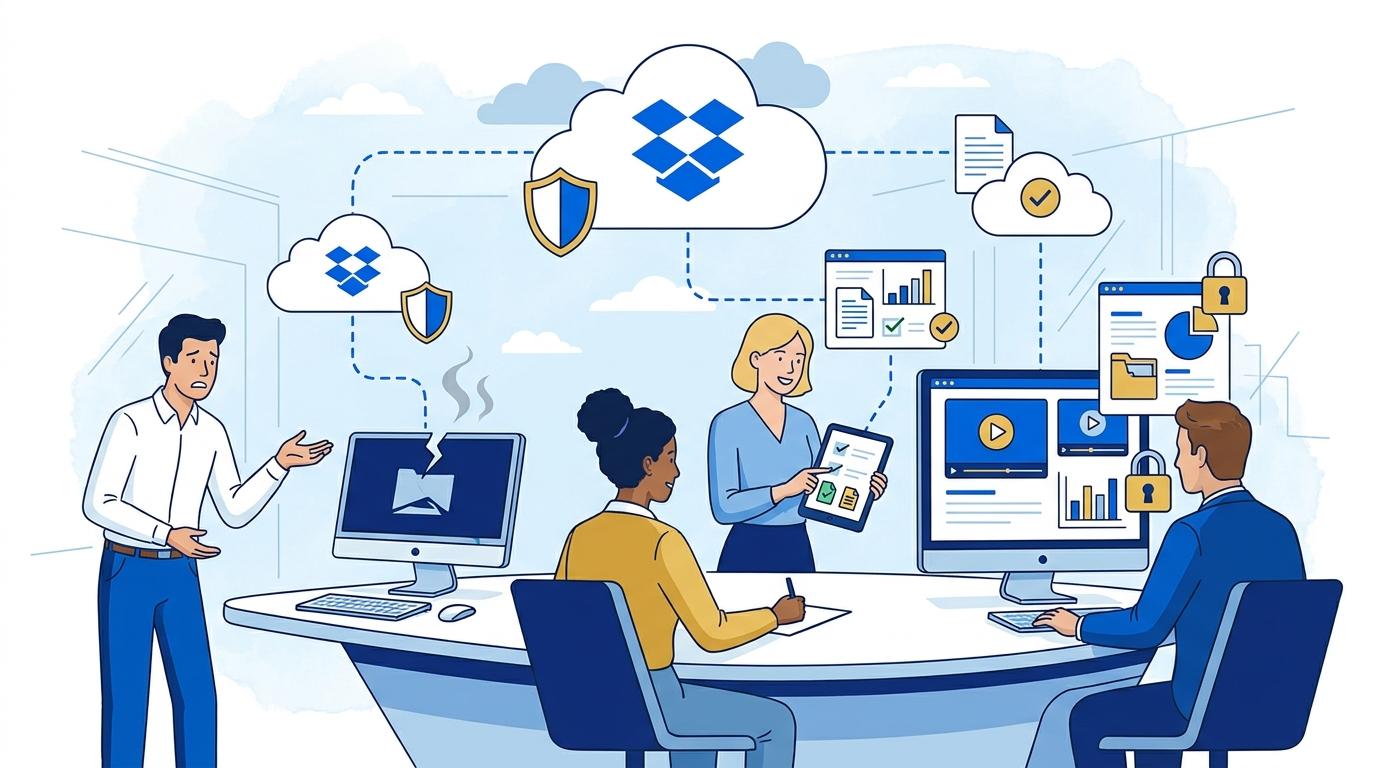
Hardware failures can happen in any video production studio – a damaged drive, a stolen laptop, or even a fire in the office. Key projects are at risk of being inaccessible, while clients often expect constant insight into work progress. In such cases, Dropbox Backup becomes a tool not just for file recovery, but also for instantly restoring client access to company materials.
This post discusses how to use Dropbox Backup in a video production studio to safeguard projects and maintain ongoing collaboration with clients after a computer failure. We focus on the practical aspects of sharing files with external recipients, the steps to restore access, and real limitations of the solution.
Dropbox Backup – instant file recovery after computer failure
Dropbox Backup allows you to quickly create backups of entire folders from your computer’s drive to your Dropbox account. In practice, this means that when hardware fails or data is lost, a studio administrator or project owner can directly restore the file structure on a new device. The process involves:
- selecting folders for regular backup in Dropbox Backup (e.g., current projects, output materials, reference catalogues),
- automatically uploading them to Dropbox cloud in the background, without interrupting creative work,
- in the event of failure – logging in on a new device and restoring selected files or entire folders with one click.
Importantly, files restored via Dropbox Backup retain their original folder structure, names, and date stamps, minimizing chaos after a failure. An external client who has been granted access to a specific folder or project can continue working without having to wait for files to be manually resent by the studio.
How Dropbox Backup supports continuous client access to files after a failure
The main challenge after a computer failure in the studio is not just restoring internal files, but maintaining secure, ongoing access for clients. Dropbox Backup integrates with Dropbox sharing mechanisms, which allows you to:
- keep active links to shared folders and files even after a hardware failure or device replacement,
- allow clients instant insight into restored materials with no need to reconfigure permissions,
- manage sharing access and history – client rights are independent of the employee’s physical device location.
After a folder is restored with Dropbox Backup, the client retains uninterrupted access to files, which is essential for projects running continuously or with multiple external reviewers. It’s important to remember that sharing functionality depends on previously granted permissions and the security policies applied in Dropbox.
Configuring Dropbox Backup in a video production studio – practical steps
Effective project protection requires proper Dropbox Backup configuration at the outset of collaboration. We recommend the following steps:
- Select directories that must be backed up (e.g., project folders, exports, closed project archives).
- Enable Dropbox Backup for the selected folders in the Dropbox application on each workstation.
- Regularly test the file restoration process by simulating a computer failure and checking whether clients have access to key materials.
- Grant folder permissions to clients or external collaborators in Dropbox – preferably in view-only or limited edit mode.
- In the event of a failure, promptly restore the backup on new hardware and verify the accuracy of shared files.
It’s worth noting that Dropbox Backup is not a creative file versioning system – for that, use Dropbox’s version history, which can work in parallel.
Limitations and conditions for effective use of Dropbox Backup in this role
Dropbox Backup is a strong tool for mitigating the effects of computer failure, but its effectiveness depends on several conditions:
- the backup covers only selected folders – files outside them won’t be restored,
- copies are created automatically, but synchronization must complete before failure to ensure new files are in the cloud,
- the amount of data that can be backed up is limited by your Dropbox plan’s capacity,
- the client only sees files they were granted access to before the failure – later changes require administrator action,
- Dropbox Backup does not replace full offline archiving (e.g., on separate media) for very large projects.
For these reasons, Dropbox Backup works best in workflows where key folders are regularly synchronized and file sharing permissions are clearly managed on client accounts.
Dropbox Backup and security of collaboration with external clients
One of the main advantages of Dropbox Backup in client work is minimizing the risk of accidental data loss – both on the studio and client side. The client is assured that even if hardware fails on the production company’s end, access to materials will not be interrupted without warning. Additionally, Dropbox’s audit mechanisms allow you to track sharing and access history, increasing process transparency.
It’s important to emphasize that Dropbox Backup does not automatically share files with new people – the administrator always decides who and when gets access to data restored after a failure. The security of collaboration therefore depends not only on technology, but also on access management practices in the organization.
Summary
Dropbox Backup is a solution that enables video production studios to not only protect their projects, but also maintain smooth collaboration with clients even after serious hardware failure. Automatic backup, fast folder recovery, and simple access management shorten downtime and minimize the risk of communication disruptions. If you want to learn how to implement Dropbox Backup in your company and ensure continuous access to materials for your clients – contact Fixtra.