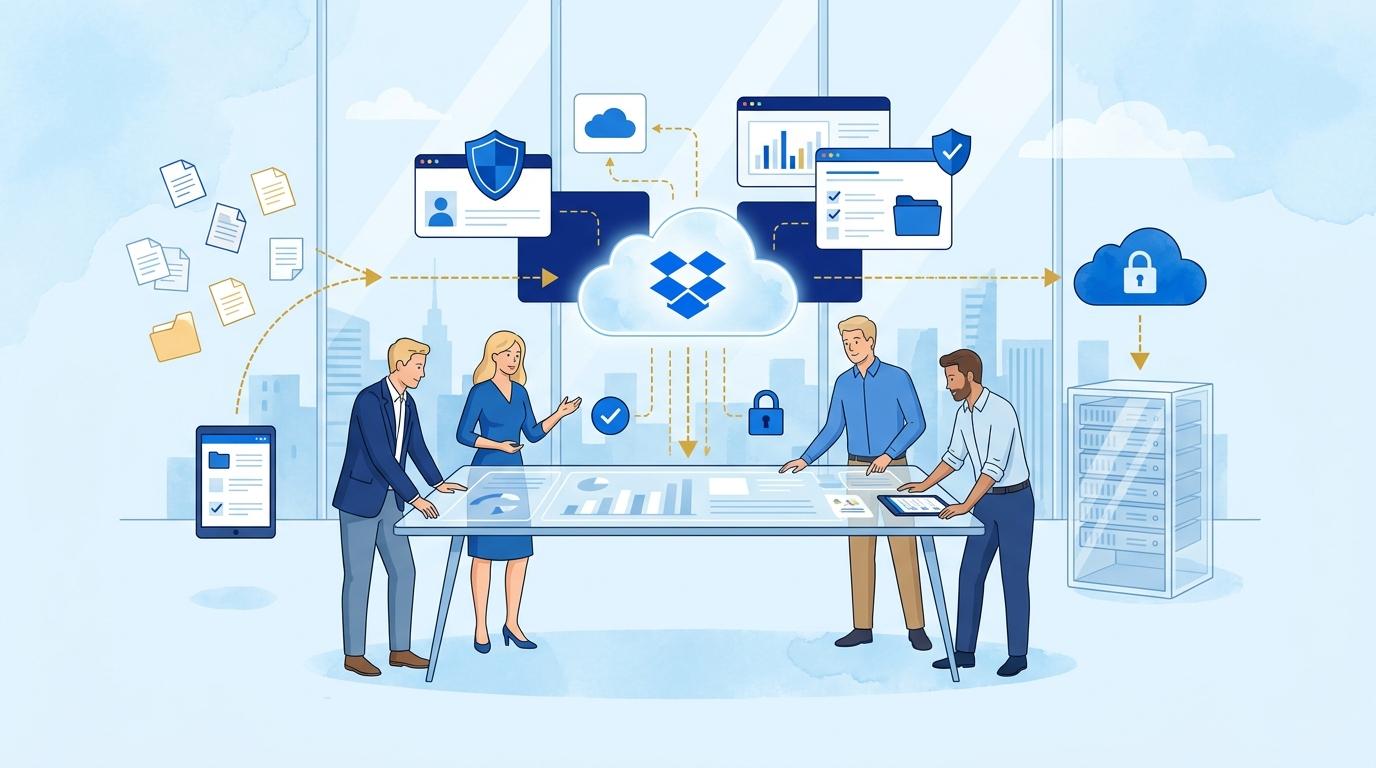
Team managers in consulting firms often face chaos with local files: documents scattered across consultants’ computers, inconsistent versions, and no central place for backups. In the event of a computer failure, the risk of losing critical data becomes real, and quickly restoring the work environment can be problematic. Dropbox Backup is a tool that automates and simplifies data protection at the level of individual computers or the entire team.
In this post, I explain how Dropbox Backup helps consulting managers keep files organized, avoid frantic searches for lost documents, and prepare their company for unexpected hardware failures.
Dropbox Backup: automating backup of working folders
Dropbox Backup allows you to configure automatic backups of key folders on employees’ computers, such as Desktop, Documents, or Pictures. After initial setup, the tool monitors selected directories and uploads their contents to the Dropbox cloud. This way, the team manager does not have to rely on each consultant’s discipline—the backup process is fully automated.
Initial situation: a team member works locally, saving files on their computer. Action: the administrator or user starts Dropbox Backup and selects folders for automatic backup. Result: all folder content is regularly backed up to the cloud, and can be accessed even after a computer failure.
- Automated backups eliminate the risk of data loss due to negligence.
- This function is available in Dropbox Standard, Advanced, and Enterprise plans, but it’s important to check that each workstation has the Dropbox app installed and active.
- Limitation: Dropbox Backup protects selected folders—other locations, like network drives, require separate setup or may be omitted.
Restoring the work environment after a computer failure with Dropbox Backup
If a consultant’s computer breaks down or needs to be replaced, Dropbox Backup enables quick recovery of all protected files on a new device. After logging into the Dropbox account and restarting the Backup function, the user can restore folder contents to their original locations.
Initial situation: disk failure or lost device. Action: the consultant logs into Dropbox on a new computer and chooses to restore the backup. Result: recovers all folder contents (with structure), minimizing downtime and losses.
- Dropbox Backup stores copies in the cloud, so it doesn’t need local drives or extra software.
- The condition is that backup for these folders was previously activated and performed regularly.
- It’s recommended to periodically check backup status in the Dropbox admin panel.
Dropbox Backup as a file organization tool in a consulting team
In a consulting environment, where many employees create and edit files on their own computers, Dropbox Backup centralizes access to up-to-date file versions. The team manager can be sure that files aren’t left exclusively on local machines, and can easily restore them when needed.
The backup feature also motivates employees to keep their key folders organized, as only those are protected. It’s also helpful when onboarding new staff—restoring the backup allows a new consultant to pick up tasks without searching for files on former computers.
Note: Dropbox Backup does not replace a full-scale project documentation system—it is best used as a safeguard for working files and individual team assets.
Monitoring and managing Dropbox Backup backups as an administrator
The team manager or IT admin can monitor which workstations have active Dropbox Backup and whether backups run correctly. In the admin panel, you can check the status of the last backup, view warnings or errors, and ensure that key computers aren’t overlooked when deploying this feature.
Practical steps:
- Log in to the Dropbox admin panel (Standard, Advanced, or Enterprise plan).
- Check the user list and backup statuses.
- Send reminders or support to anyone who hasn’t started their backup.
- If needed—provide training on Dropbox Backup setup.
Limitation: Managing backups requires administrative privileges and access to Dropbox Business reports.
Dropbox Backup limitations in a consulting environment
Despite its broad functionality, Dropbox Backup has its limits. The tool protects selected folders but not the whole operating system or applications, so it’s not a full machine backup solution. Backups do not cover software, system settings, or apps—they focus solely on user files.
Dropbox Backup also does not support backing up file servers, virtual machines, or mobile devices—it’s designed for computers running Windows or macOS. For full project security, consider combining it with other document management tools, especially if your company uses complex workflows or CRM systems.
Summary
Dropbox Backup is a practical tool for consulting team managers seeking file order and peace of mind in case of sudden computer failures. Automated backup of key folders, quick restoration of work environments, and the ability to monitor backup statuses provide a real advantage in the daily operations of a consulting firm. If you’d like to implement Dropbox Backup in your team or discuss integrating it with other Dropbox solutions, contact Fixtra—we’ll be happy to help you choose the best data protection approach for your business.