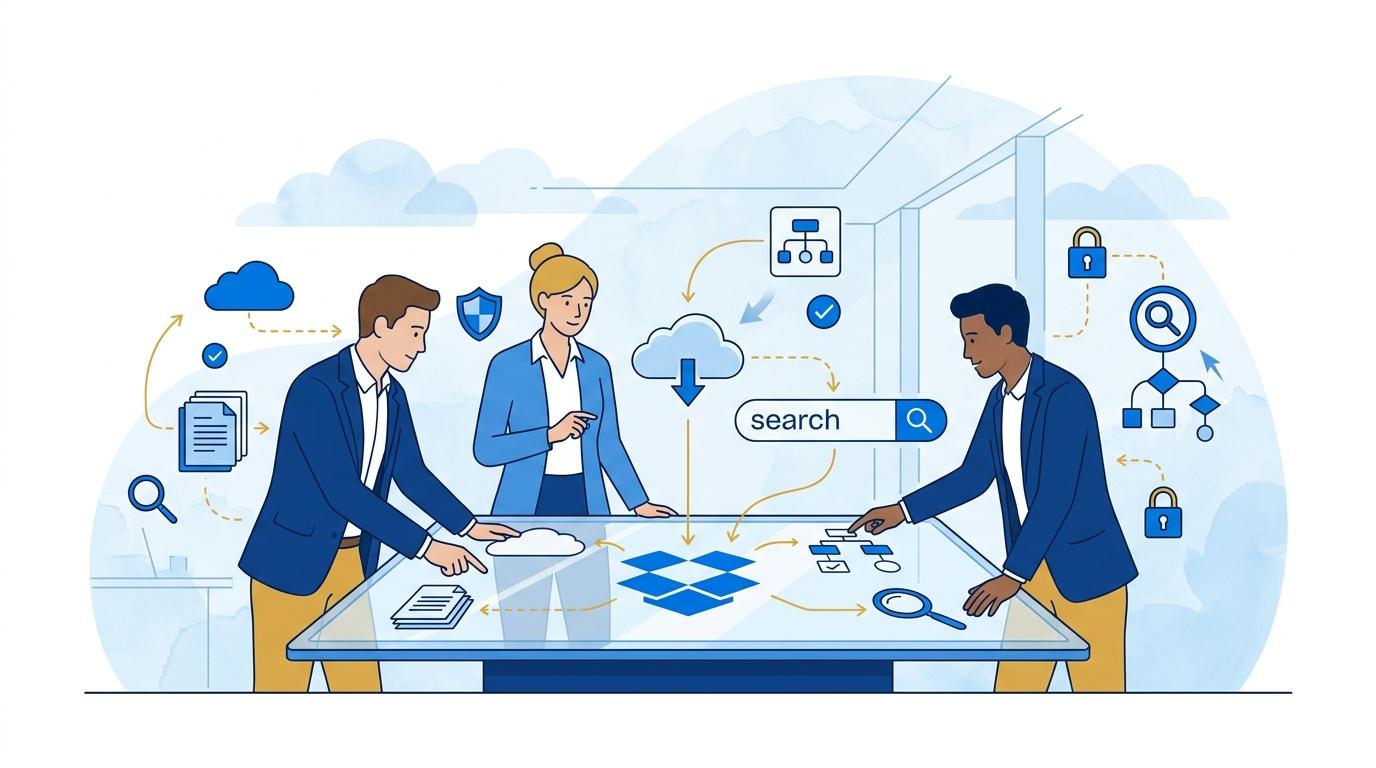
Non-governmental organizations are increasingly sharing documents, educational materials, or reports with partners and beneficiaries via the cloud. However, from the perspective of an external client—such as a grantee or coalition member—quickly finding the right file among hundreds of shared folders can be a major challenge. Dropbox Dash addresses this issue by offering intelligent search that allows users to instantly locate the information they need within the resources shared by the organization.
This post will walk you through how Dropbox Dash can streamline the daily work of external NGO clients who access organizational materials. We’ll focus on practical applications and real limitations of this feature.
Dropbox Dash – Fast Search of Shared Files for External Clients
Dropbox Dash is a tool built into the Dropbox platform that enables searching files and folders not only in your own account but also in resources shared by the organization. From an external client’s perspective (e.g., an NGO partner) who has been granted access to specific folders, Dash makes it easy to find reports, agreements, or guides, even if they don’t know exactly where they were saved.
After logging into their Dropbox account and launching Dash, the user enters keywords related to the information they are seeking. Dash immediately searches not only their own files but also those shared by the organization, displaying results in an easy-to-read format. As a result, the NGO partner does not need to know the folder structure or manually browse through directories.
It is important to note that the client can only search within resources they have been granted access to—Dash does not allow browsing private files of other users or resources that have not been explicitly shared.
Dropbox Dash Smart Suggestions – How Do They Shorten Search Time?
One of Dropbox Dash’s key features is its smart suggestions, which appear while typing a phrase in the search field. Based on file names, document content (if supported), and sharing context, Dash suggests the most likely results. This is especially helpful when the client does not remember the exact file name but recalls a fragment of the title or topic.
- The user launches Dash and starts typing a keyword (e.g., “grant agreement template”)
- After a few characters, the tool displays suggestions for files shared by the NGO
- The user clicks to open the selected document or folder immediately
This allows even new collaborators to quickly find materials without knowing folder layouts or internal file naming conventions.
Working with Different File Types and Dropbox Dash Limitations
Dropbox Dash supports many popular file formats, including text documents, spreadsheets, PDFs, and images. For text files and PDFs, searching by content (full-text search) is possible, provided the file has recognized text. This significantly increases search efficiency when documents are not clearly named.
However, there are a few limitations to keep in mind:
- Content search may not work for scans or image files without a text layer
- The scope of searchable resources is limited to shared folders (no access to the organization’s private files)
- Some features may depend on the Dropbox plan (e.g., indexing range in larger environments)
In practice, the NGO user should receive a clear shared folder structure to fully utilize Dash’s potential—this ensures both fast and complete searching.
Dropbox Dash and Information Security for NGO Clients
Dropbox Dash does not alter file access permissions—the client still only sees resources explicitly shared with them by the organization. This is crucial for security and data protection in NGOs. Dash does not allow bypassing visibility restrictions, and search results are based on granted permissions.
Additionally, using Dash, the user does not have to download multiple files to their computer—they simply open the needed document directly from the search results. This reduces the risk of unauthorized copying or data sprawl.
For the organization sharing materials, it is vital to regularly review and update the shared folder structure to fully leverage Dash while maintaining control over information.
How to Implement Dropbox Dash for External NGO Clients – Practical Steps
The process of implementing Dropbox Dash for beneficiaries or NGO partners is straightforward but requires several steps on the administrator’s side:
- Create a Dropbox account for the NGO and configure appropriate resource-sharing permissions
- Share relevant folders or files with selected partners/clients (with edit or view-only rights)
- Inform clients about the possibility of using Dash and provide instructions for logging in and launching search
- Encourage clients to use Dash when working with shared materials to reduce chaos and repetitive file requests
It is also worth discussing with clients the importance of proper file naming and accurate placement in the folder structure, as this increases Dash search effectiveness. If the NGO uses Dropbox Standard, Advanced, or Enterprise, administrators can monitor activity and manage access as organizational or partner needs change.
Summary
Dropbox Dash is an effective tool for NGO clients who need fast access to shared documents and materials. Thanks to its smart search feature, partners and beneficiaries can reduce the time spent browsing folders, while the organization can minimize repetitive file requests. If you want to learn how to implement Dropbox Dash in your organization and improve your clients’ experience, contact the Fixtra team.