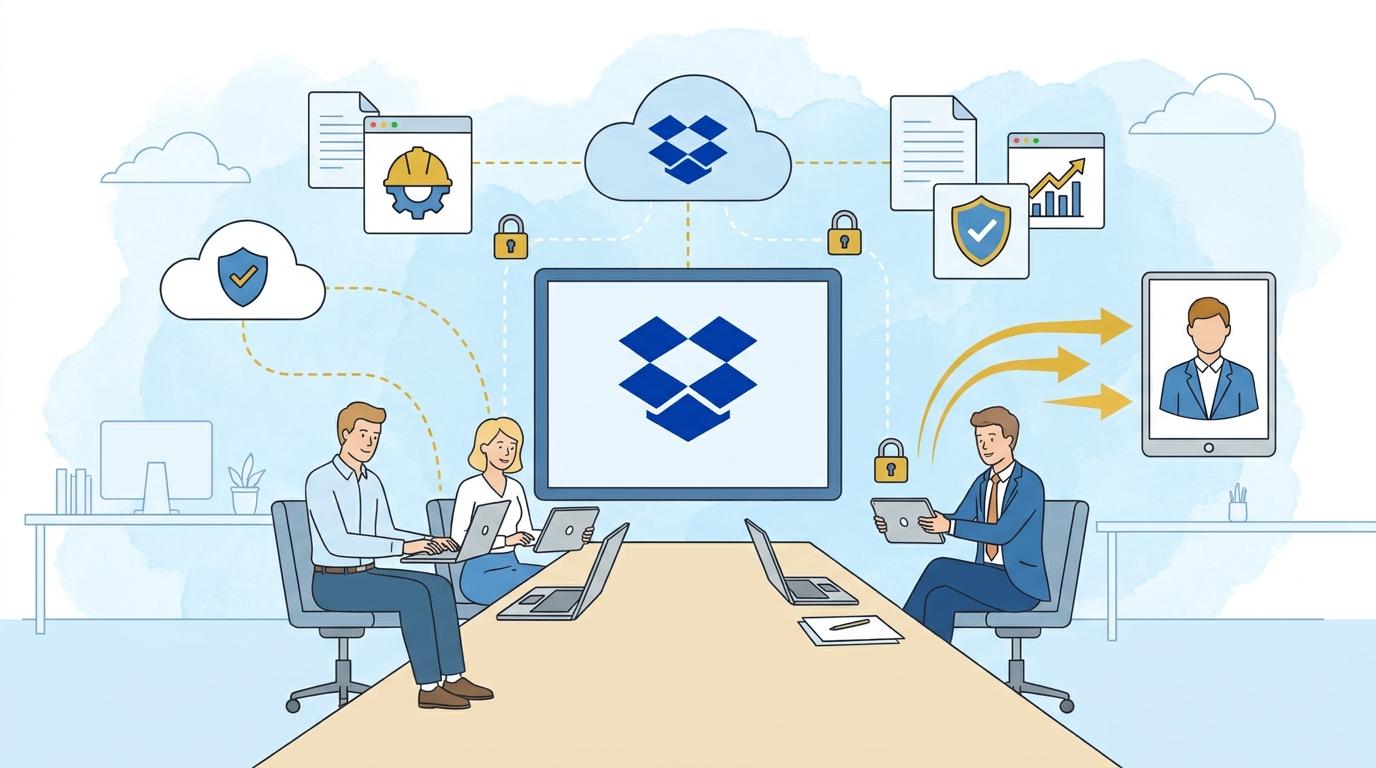
Owners of small construction companies often face the challenge of delivering finished files to clients safely and conveniently—for example, as-built documentation, material breakdowns, or signed acceptance protocols. Traditional methods like email or shared folders can be unreliable, lead to confusion, loss of control, and problems with large files. Dropbox Transfer addresses this by providing a tool designed for quick and secure delivery of final documents without sharing entire folders or granting ongoing access to your business drive.
In this post, I’ll show how Dropbox Transfer can simplify handing over completed files to clients in a small construction company, what options it offers, and what to watch out for to ensure the process is convenient for both you and the recipient.
Dropbox Transfer – how does file delivery work?
Dropbox Transfer is designed for one-off, secure transfers of selected files. In practice, this means that after completing a job, you can quickly prepare a package with documents—without sharing the whole folder. Simply drag the files into Transfer, set your options (such as password protection or expiration date), and generate a unique link to send to your client.
The client doesn’t need a Dropbox account to download the files—just click the link. After downloading, the transfer can expire automatically, eliminating further uncontrolled access.
The main steps include:
- Select the files to transfer directly from Dropbox or your computer.
- Configure security options like password protection or transfer expiration date.
- Generate the link and send it to the client (for example, via email).
- After download, you can check if and when the files were accessed.
File size limits depend on your Dropbox plan—be sure to check the documentation before sending large packages (such as photos or photographic documentation).
Security and convenience with Dropbox Transfer
For a construction business owner, it’s important that documentation doesn’t fall into the wrong hands. Dropbox Transfer allows you to:
- Set a password the recipient must enter to access the files.
- Set an expiration date for the transfer—after this, files are no longer available.
- Track downloads—you’ll know if and when the file was downloaded.
All this without requiring the client to create an account and with no risk of accidentally sharing more than intended. Additionally, you can easily deactivate the transfer link at any time.
Note that available options depend on your Dropbox plan—for example, the Standard plan offers basic settings, while Advanced and Enterprise plans offer extra safeguards and higher transfer limits. Always check your plan’s current features in the official documentation (https://help.dropbox.com/share/transfer-files-large) before sending important files.
Dropbox Transfer in daily construction company work – example workflow
Imagine you’ve just completed an apartment renovation and want to deliver a complete set of documents: before-and-after photos, invoice scans, and the acceptance protocol. Log in to Dropbox Transfer, select the files from Dropbox or your computer, name the transfer (e.g. “Documentation – Renovation Kwiatowa 12”), set a password (“2026Kwiatowa”), and an expiration date for the link (7 days). Then, generate the link and send it to your client via SMS or email.
The client receives the link, enters the password, and downloads a convenient package of files. There’s no need for logins or repeated requests, and no issues with email attachment limits. You can see when files have been downloaded and safely disable access after the deadline.
This solution works for simple jobs and larger projects alike, where you need control over what you’re sharing and with whom.
Limitations and requirements for using Dropbox Transfer
Dropbox Transfer doesn’t replace shared folders for collaboration—it’s designed just for one-off delivery of final files. The client can’t edit or add documents to the transfer, and access is lost when the link expires. This boosts security, but is a limitation if you expect to work jointly on files.
The size of a single transfer depends on your Dropbox plan. Standard plans have lower limits than Advanced or Enterprise. If you frequently send hundreds of photos or large CAD projects, check if your plan meets your needs.
Also, Dropbox Transfer doesn’t automatically archive the complete transfer history forever—only basic information about sent transfers is saved. If a file is important, store it in the appropriate place in your Dropbox as well.
How to prepare a secure document package in Dropbox Transfer?
Preparing a transfer is simple and doesn’t require technical knowledge. Here’s a sample list of steps:
- Log in to Dropbox and select “Transfer” from the side menu.
- Click “Create transfer” and add the selected files or folders (you can drag files from your computer).
- Configure options: name the transfer, set an expiration date, and (optionally) a download password.
- Review the summary—ensure you’re sending the correct files.
- Generate the link and send it to the client via any communication channel (SMS, email, WhatsApp).
The whole process takes just a few minutes, and your client gets easy access to all needed documents at once, with no need to log in or install extra apps.
Summary
Dropbox Transfer is an ideal tool for small construction company owners who want to quickly and securely deliver final files to clients, avoiding confusion and loss of control over documentation. It eliminates email attachment problems, doesn’t require the recipient to create an account, and the security settings are intuitive. Before sending larger packages, check your Dropbox plan’s limits and consult the official guide. If you have questions or want to implement proven document delivery tools, contact Fixtra—we’ll help you select and configure the best solution for your business.