Imagine opening your laptop on a Monday morning only to find it won’t start. For many, this is the beginning of a nightmare—lost projects, invoices, critical documents crafted over the past weeks. Panic rises in the office: who has the backup? Can the data be recovered after a crash? This isn’t just a theoretical scenario—recent reports show that nearly 30% of small businesses have suffered major data loss in recent years, with cyberattacks and human error becoming ever more frequent.
Not long ago, companies had to rely on manual backups, external drives, or complicated IT systems. Today, thanks to the new Dropbox Backup features, even a small business can quickly recover files, folders, or entire devices. Importantly, this technology isn’t reserved only for large corporations with big budgets. It’s available in several Dropbox plans and integration requires just a few clicks.
This article explores how Dropbox Backup works in practice and the real-life office scenarios that show its value. I’ll draw on fresh data from official Dropbox channels and top tech security rankings to show why it’s worth implementing cloud backup before the worst happens.
The Most Common Corporate Data Loss Scenarios – and How to Respond
Business data loss has many faces and isn’t always due to malicious activity. The most common scenarios include hardware failure, accidental file deletion, ransomware attacks, and errors during migrations.
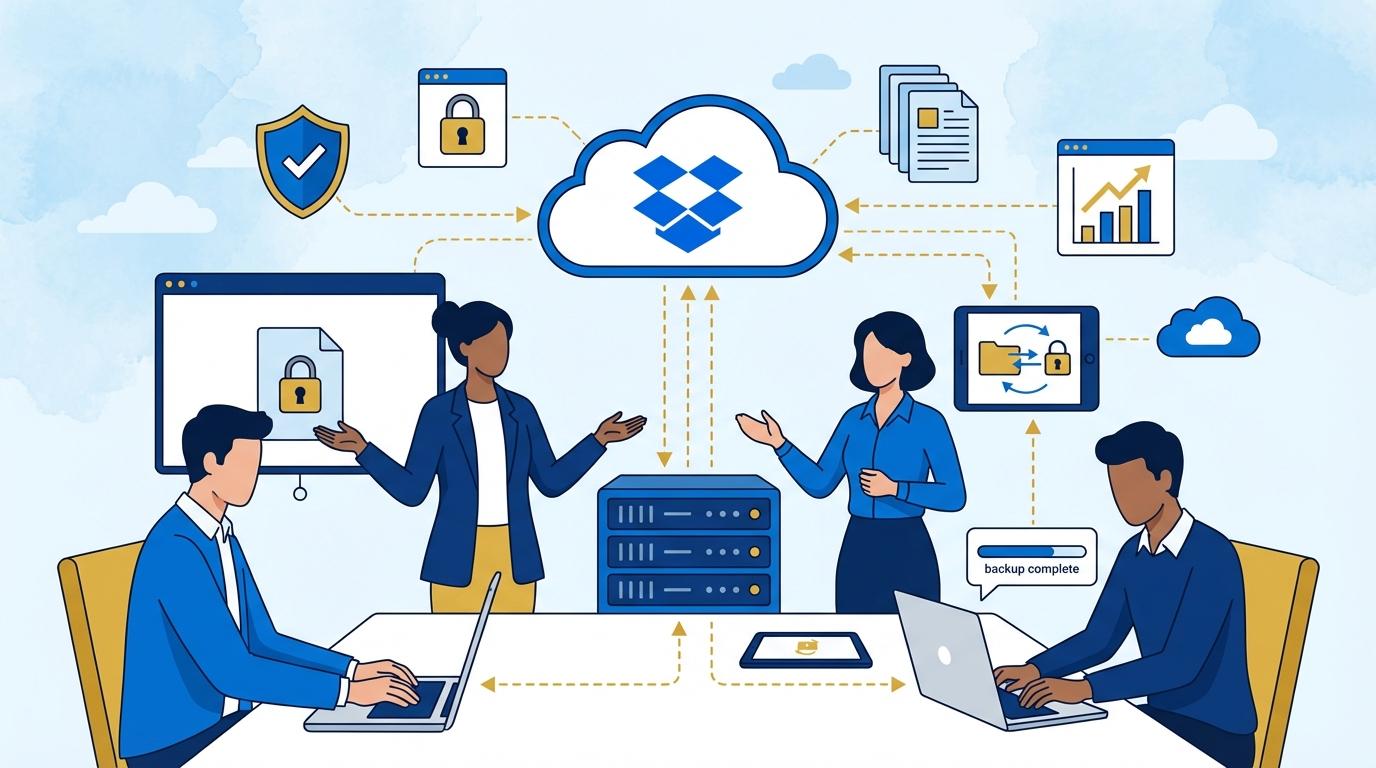
Dropbox Backup is designed to address these challenges. It automatically creates backups of selected local folders and entire hard drives, saving them securely in Dropbox’s cloud. If data loss occurs, just a few clicks are needed to restore selected files or even entire folders to their pre-incident state.
Real-world example: One Dropbox client got into trouble after a new IT employee accidentally formatted a computer. Thanks to the device recovery function, the company restored all data from the latest backup, minimizing time and operational losses.
Backup Automation – Forget Manual Copies and Control Everything From the Cloud
Manual backups waste time and are open to mistakes. Dropbox Backup eliminates this with full automation. After one-time setup, selected folders, documents, and photos are archived according to schedule.
In the Dropbox admin panel, you can easily manage all backups and monitor their status. You also receive notifications about errors or failed backup attempts, allowing for fast response.
Another advantage is file versioning—you can restore not just everything, but also select a specific older version of a single document, for example, from before an unwanted edit or ransomware infection. This is appreciated by IT departments and non-technical employees who want full control of their resources.
Data Security in the Age of Cyberthreats – How Dropbox Backup Guards Against Attacks
According to Wired and ZDNet analyses, cyberattacks on small and medium businesses increase year after year. Data encryption, ransomware protection, and suspicious activity monitoring are now must-have features for backup systems.
Dropbox Backup meets the highest security standards. Data is encrypted in transit (TLS/SSL) and at rest (256-bit AES). Only authorized users can access backups, and every attempt to download or restore files is logged in Dropbox’s security history.
In a ransomware scenario, Dropbox Backup allows for rapid file restoration from pre-infection copies. This is a major advantage over traditional local-disk backups, which can themselves be encrypted by malware. New for 2024 is integration with unusual activity alerts—admins can immediately respond to potential threats.
Data Recovery After a Crash – What Does Dropbox Backup Offer?
One of Dropbox Backup’s top features is rapid data recovery not only to the same device, but also to a new computer—no manual file transfers or extra software needed.
This process runs from the Dropbox browser interface or app. Users select a recovery point and then automatically restore all chosen folders and files. This is especially valued by companies with distributed teams or frequent device replacements.
- Restore all files after a computer crash in under an hour, without IT department involvement.
- Quickly migrate work environments to a new device—e.g., after theft or hardware upgrade.
- Access backup history—choose the exact recovery date, even for single files.
Dropbox Backup also supports restoring data on mobile devices, so not just laptops but also work smartphones are protected.
Integrating Dropbox Backup With Other Tools and Office Workflows
Dropbox Backup doesn’t work in isolation—you can connect it with other Dropbox ecosystem tools like Replay, Sign, or DocSend. Integration with Dropbox Paper makes it easy to auto-archive notes and key project documents.
Thanks to Dropbox API, companies can implement custom automation—for example, creating extra backups of key documents after signing with Dropbox Sign or after being sent via DocSend. This is especially important in regulated sectors where multi-stage archiving is required.
It’s worth noting that Dropbox Backup is constantly being developed—in the latest updates, permission and reporting management have been simplified, making it easier for both admins and everyday office users. This makes it not just a backup tool but a crucial element of corporate information security policy.
Summary
Dropbox Backup offers more than classic backup—it brings simplicity, automation, and enterprise-grade security. It protects business data from crashes, cyberattacks, and human error, while remaining accessible to smaller firms. Rapid file recovery and integration with the Dropbox ecosystem make it indispensable for the modern office.