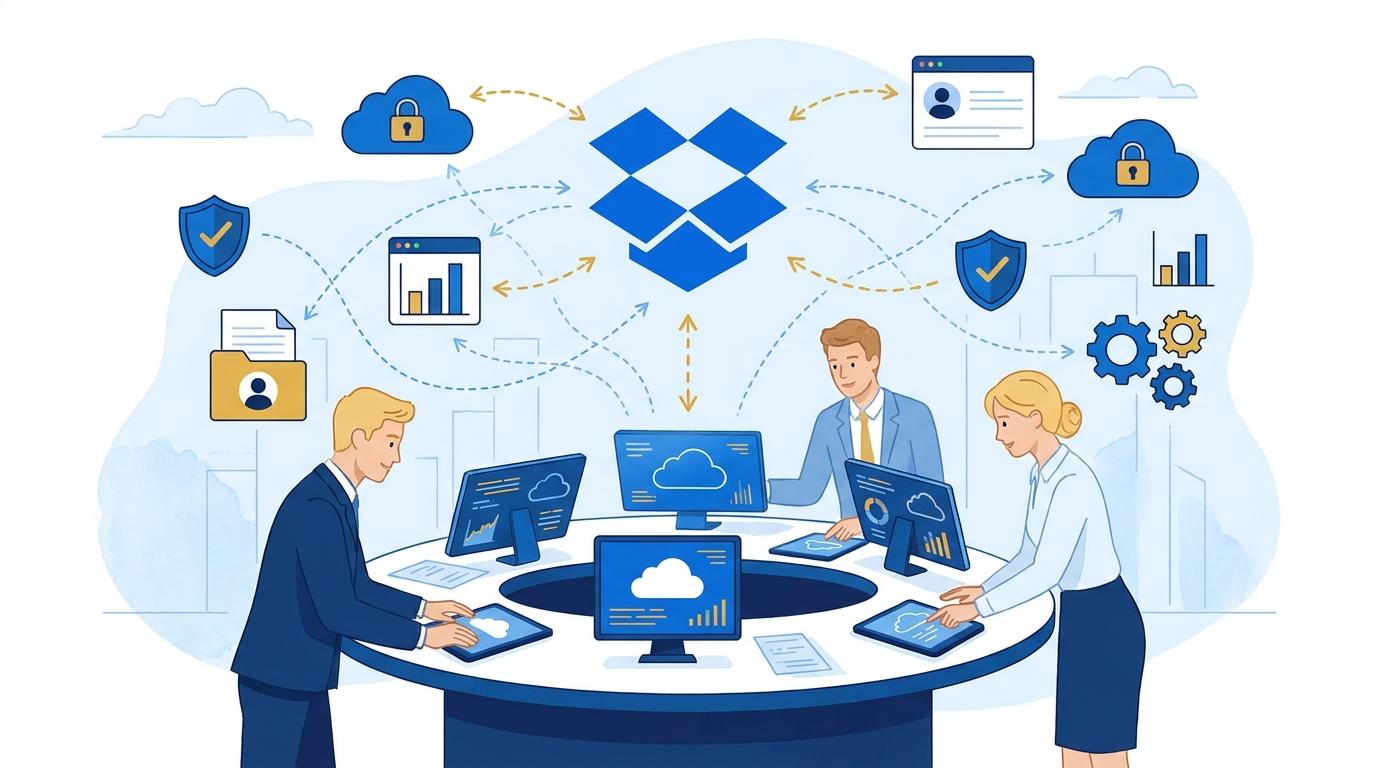
A freelancer working on projects for several tech startups often faces a major challenge: how to securely and transparently manage resource access, control permissions, and separate files for each client? Dropbox Advanced is designed for teams that require advanced administrative tools—even when the entire “team” is just one person collaborating with multiple companies.
In this article, we’ll take a look at how Dropbox Advanced enables freelancers to efficiently manage their work environment for each client, limit the risk of data leaks, and stay organized while handling multiple projects simultaneously.
Creating Separate Teams or Team Folders in Dropbox Advanced
When you work with multiple clients, it’s crucial to separate their data and avoid accidental access. With Dropbox Advanced, you can create individual team folders for each client, granting access only to selected people. A typical workflow looks like this:
- You create a “Client A” team folder and grant access only to yourself and representatives of that company.
- You manage the subfolder structure, e.g., “Contracts,” “Working Materials,” “Versions for Approval.”
- In Dropbox Advanced, team folders allow automatic access management—adding someone to the folder grants them permission to all subfolders.
Limitation: Team folders are available in Dropbox Standard, Advanced, and Enterprise, but the Advanced plan offers extended permission control and enhanced audit capabilities.
Advanced Access and Permission Management in Dropbox Advanced
Dropbox Advanced gives freelancers robust tools for controlling access. You can specify who can edit or only view files, both at folder and file level. If a client only needs access to final versions, you set “view only” permissions for the relevant subfolder.
- When adding a new person to a project, you define their role: editor, viewer, or admin.
- You can also grant temporary access—for example, during a consultation or material review by the client.
- Every change in permissions is logged, making audits and accountability easier.
Limitation: Permission management requires precision—accidentally assigning the wrong permissions results in broader access, so it’s worth regularly reviewing permissions in the Dropbox Advanced admin panel.
Monitoring Activity and Operation Audits with Dropbox Advanced
Dropbox Advanced enables detailed monitoring of user actions: you can check who accessed, edited, or downloaded files and when. This is extremely important when you manage several startups and need to prove that data access complied with client agreements.
- You can generate activity reports for specific folders or users.
- Log details help quickly identify unauthorized actions.
- The version history makes it easy to trace the workflow, which is useful in case of complaints or disputes.
Requirement: Using advanced audit features requires Dropbox Advanced admin permissions. It’s also advisable to regularly archive logs, especially for projects needing ISO compliance or industry standards.
Automating Onboarding and Access Removal Processes in Dropbox Advanced
Working with multiple clients means frequent team changes. Dropbox Advanced lets you automate onboarding and offboarding—e.g., when a client hires someone new or ends the collaboration. Here’s how it works in practice:
- You receive information about a new member joining the client’s team.
- You add the user to the appropriate team folder and assign permissions.
- Once the project ends, you revoke access with a single click—to both current and historical files.
This eliminates the risk of a former collaborator retaining access to confidential data. Limitation: Automated membership management requires awareness of the current folder and role structure to avoid accidentally removing critical permissions.
Security and Data Protection for Remote Work with Dropbox Advanced
When collaborating with tech startups, you often work remotely. Dropbox Advanced offers file encryption, mandatory two-factor authentication, and centralized device management, greatly reducing the risk of data leaks—even if you lose your laptop or phone.
- You can force password resets or log out devices from the admin panel.
- Dropbox Advanced provides file version history, letting you recover data in case of accidental overwrites or ransomware attacks.
- Integration with DLP tools and the ability to export activity logs support compliance with requirements from tech sector clients.
Limitation: Not all security features are available in plans lower than Advanced—before deploying, verify that your client is on the correct Dropbox plan.
Summary
Dropbox Advanced is a solution that enables freelancers to efficiently manage the team environment while working for multiple clients simultaneously. Powerful access management, security, and process automation features let you focus on the project instead of struggling with file chaos. If you want to see how Dropbox Advanced can support your daily work and benefit your clients, get in touch with Fixtra—we’ll be happy to advise on the optimal deployment.