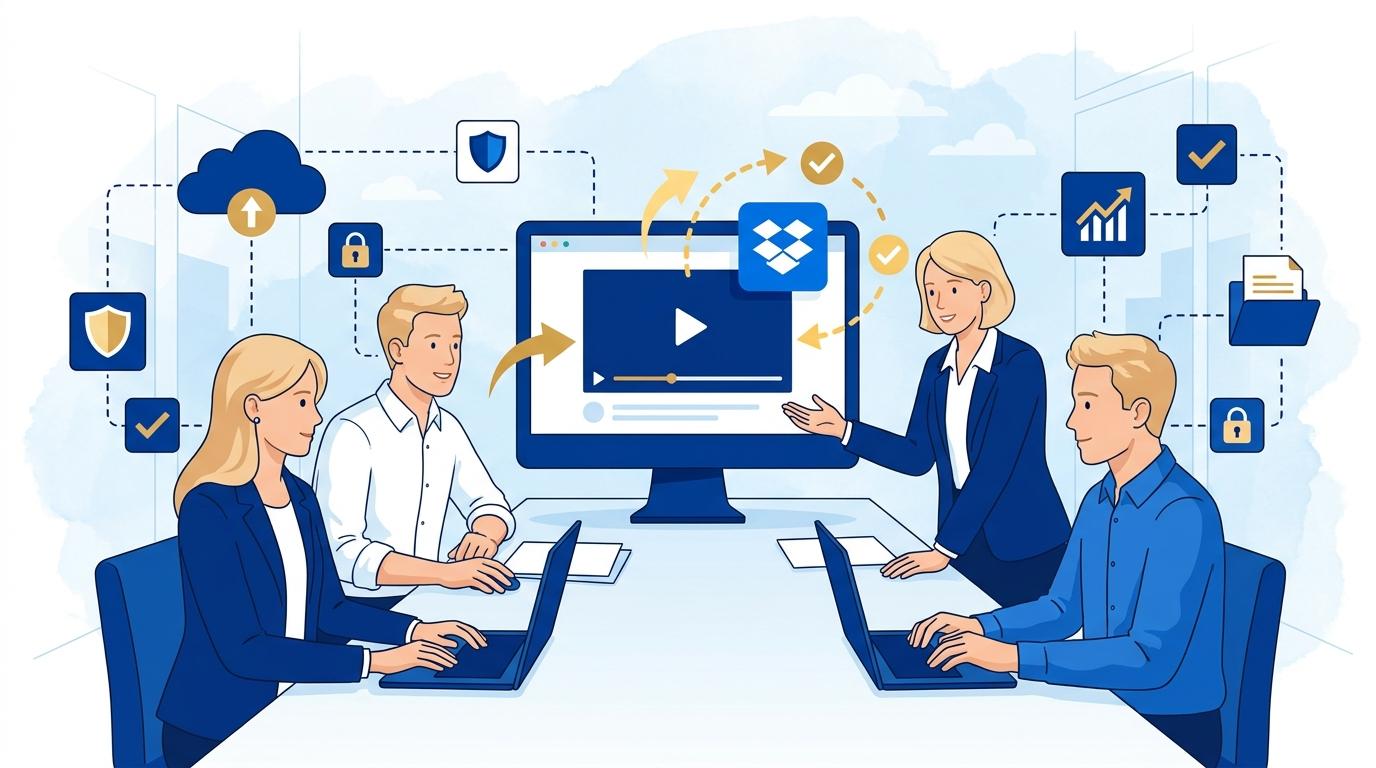
Owners of small real estate offices increasingly use a variety of creative materials: property showcase videos, high-quality photos, or animated virtual tours. The challenge arises when you need to quickly and efficiently approve these materials—especially if you’re not an IT expert and you don’t want to waste time sending large files by email, searching for the right version, or managing chaotic communication with a designer or video editor. Dropbox Replay addresses this problem by streamlining the process of approving and commenting on visual materials in one place, without requiring additional software installation or learning complex tools.
In this post, I’ll show you how a small real estate office owner can use Dropbox Replay to efficiently approve creative materials prepared by external contractors. I will explain specific steps, benefits, and limitations of this solution so you can decide if this tool is right for you.
Dropbox Replay – an easy start with videos and photos
Imagine the scenario: you receive a link from a photographer or editor to a new video showcasing an apartment for rent. Instead of downloading huge files or using external services, you simply click the Dropbox Replay link. You open the material in your browser—no need to install or download anything. You can view high-quality videos or images, with all files stored directly on your Dropbox account or shared by the contractor.
With Dropbox Replay, you don’t need to know how to use video editing software or manage complicated dashboards. The interface is maximally simplified, so even non-technical users can quickly find their way around. Remember, however, that Replay works with selected file types (video, audio, images) and requires a Dropbox account with the appropriate plan—such as Standard, Advanced, or Enterprise.
Adding comments and precise feedback directly in Dropbox Replay
The biggest issue in material approval processes is often unclear communication: “please fix something halfway through the video” or “this photo is too dark.” Dropbox Replay lets you comment directly on the video timeline or a specific spot in a photo. Simply click and add your note—the comment is attached to the exact frame or section of the material.
- You watch the video in Dropbox Replay.
- You pause at the desired moment and add a comment, e.g., “the logo should be brighter.”
- The contractor immediately sees your notes and can mark them as resolved or request clarification.
This eliminates doubt about which part of the material you’re referring to, and the entire process is transparent. A limitation is that you can’t edit files within Replay—it’s not for editing, only for commenting and approval. Still, this is entirely sufficient for smooth cooperation with contractors.
Step-by-step creative approval workflow with Dropbox Replay
To illustrate practical use of Dropbox Replay in a real estate office, here’s a typical workflow:
- The photographer or editor sends a Dropbox Replay link to the material.
- You open the link in your browser—no installation or downloads required.
- You watch the video or view the images, adding comments directly on the timeline or in selected areas.
- The contractor receives your feedback in real time and can make immediate corrections.
- After changes, you receive the next version for approval—your previous comments remain visible, making it easier to track revisions.
Be aware that the number of versions and material retention time may be limited by your Dropbox plan. If you collaborate with a larger group (e.g., multiple office co-owners), everyone can comment on the same material, further streamlining communication.
Dropbox Replay in Standard, Advanced, and Enterprise plans – what should you know?
Dropbox Replay is available in Dropbox Standard, Advanced, and Enterprise plans, designed for teams and businesses. Feature availability may vary depending on the plan—check up-to-date details at the official Dropbox help page. Business versions offer more file space, advanced sharing options, and access controls for team members.
For example, Dropbox Advanced lets you manage commenting and viewing permissions, while Dropbox Enterprise adds integrations with other company tools. If your office works regularly with contractors, you can invite them as guests to specific projects—without needing to buy full licenses for each collaborator.
What are the limitations of Dropbox Replay and when should you consider implementing it?
Despite many advantages, Dropbox Replay has some limitations. First, it’s designed for reviewing and approving materials—not for editing or comprehensive processing. Collected comments streamline communication, but all file editing happens outside Replay (e.g., in Adobe Premiere or Photoshop).
Dropbox Replay supports the most popular video, audio, and image formats, but extremely large files or unusual formats may face performance limits. Access to advanced features (e.g., version history or advanced permissions) depends on your Dropbox plan. External users can comment without registration, but don’t get full options available to team members.
- Replay doesn’t replace editing tools.
- Requires a stable internet connection for large multimedia files.
- Functionality may differ by Dropbox plan.
Summary
Dropbox Replay is an excellent solution for small real estate offices that want to easily approve and comment on creative materials, without wasting time on emails or scattered files. The tool is intuitive and requires no advanced technical skills, making it ideal for small business owners. If you want to learn more about Dropbox Replay or see how to implement it in your office, contact the Fixtra team—we’ll gladly advise and help you choose the best solution for your needs.