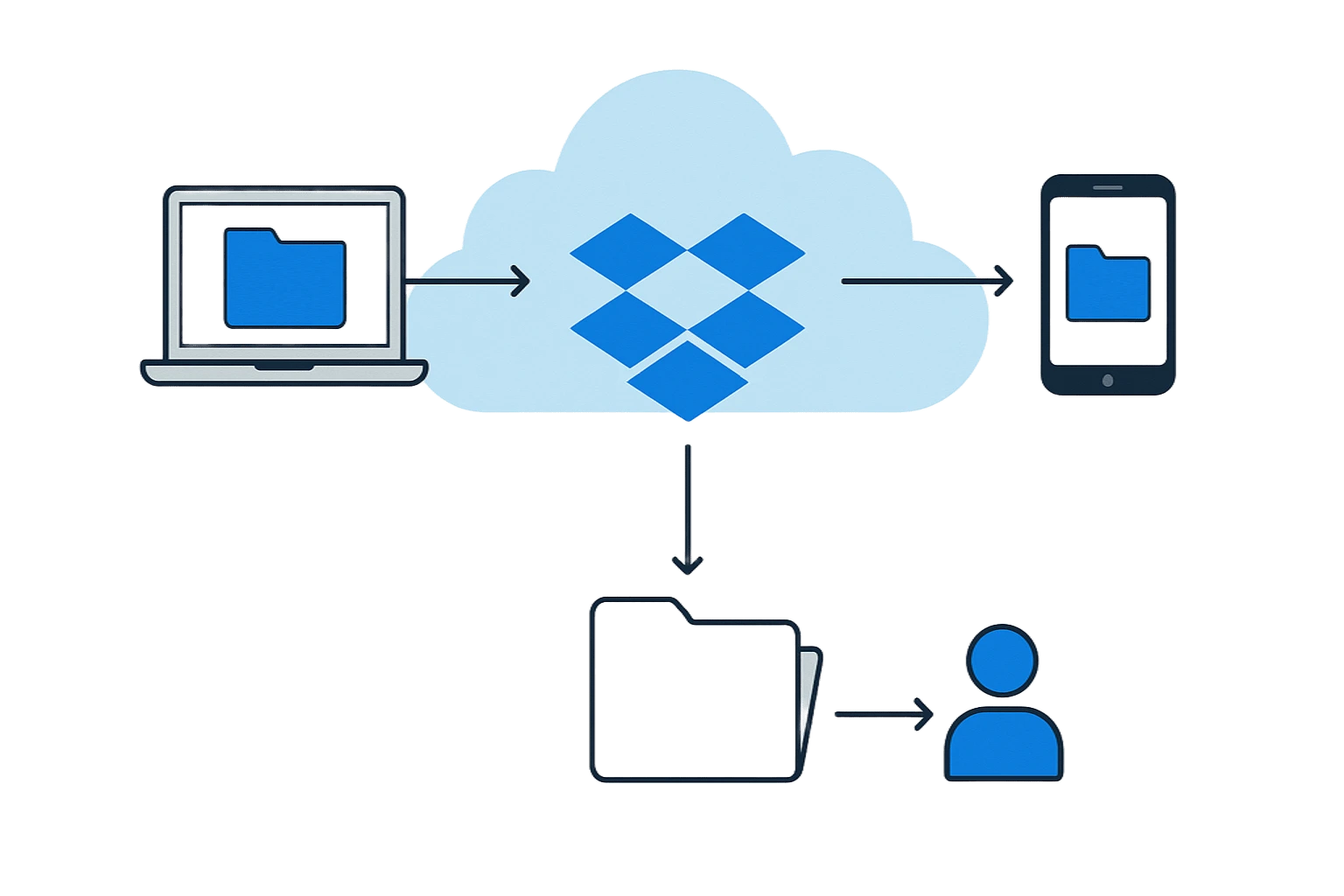
Dropbox has long been one of the most popular tools for cloud storage, but for many users, the way it actually works remains unclear. They see that files “automatically” sync between a computer, phone and browser, but they don’t really know what’s happening behind the scenes. Understanding how Dropbox manages files helps you not only use the service more efficiently but also take better care of your data security. In this article, we’ll walk through how local storage, synchronization, versioning and file sharing work step by step.
Local storage – the foundation of smooth work
Many users don’t realize that files added to Dropbox are initially stored on the computer’s hard drive. It’s a special folder that behaves just like any other system folder. This makes working with Dropbox fast and natural — you can create documents, edit them, drag photos or graphic projects without worrying about delays. Dropbox doesn’t require a constant internet connection because you’re operating on local data. Synchronization begins only when the system detects changes. Regardless of that, you work at your own pace without waiting for the cloud to respond.
Background sync – how does Dropbox upload files to the cloud?
When a file in the Dropbox folder is changed, the application analyzes it and begins the synchronization process. Unlike simple cloud services, Dropbox doesn’t upload the entire file every time. Instead, it uses Delta Sync, a technique that identifies only the modified portions of the file. This is crucial, especially for large items like videos, RAW photo batches or CAD projects. Users often don’t even notice that syncing is happening because it runs in the background without overloading the network. Before any data reaches the internet, Dropbox compresses and encrypts it to reduce its size and protect it from interception.
Cloud storage – security and resilience against failures
Once a file reaches Dropbox servers, it’s not stored as a single piece. The service divides it into blocks and distributes them across different data centers to ensure resilience against failures. Each of these fragments is encrypted, both in transit and at rest. This method of storage means that even if an individual server becomes unavailable, your data won’t be lost. This architecture is one of the reasons Dropbox is considered one of the most secure cloud solutions. Additionally, the service stores file version history, allowing you to revert to earlier versions — useful not only in case of accidental edits but also when a file is damaged or overwritten with incorrect content.
Smart Sync – massive cloud storage without taking up disk space
Dropbox introduced Smart Sync, which allows users to store files “virtually” — visible in the file explorer but not physically present on the disk. It’s an ideal solution for people who work with large amounts of data, especially on laptops with limited storage. A file is downloaded only when you actually open it. This enables you to browse the folder structure as if it were stored locally while using device resources far more efficiently. Smart Sync helps maintain order without worrying about manually moving data between drives and the cloud.
Sharing and access control – full command over who sees your files
File sharing is one of the features that made Dropbox so popular among teams and businesses. Shared links allow you to send a file to someone who doesn’t even have a Dropbox account, while the owner can precisely manage access levels. You can decide whether someone can only view a document or also edit it. Permissions can be changed at any time, and access can be revoked with a single click. Dropbox also tracks activity on shared files, which is important in project-based environments and business settings where knowing who accessed the data and when is essential.
Integrations and automations – Dropbox as a workflow engine, not just storage
Dropbox is not only a storage location but also the center of many automated processes. Integrations with office tools and communication platforms create a consistent work environment. Google Docs can be stored alongside Office files, and folder changes can automatically trigger actions in tools like Zapier. Thanks to this, Dropbox is not a passive repository but an active element of your workflow, supporting project management, customer service and team communication.
Summary
Dropbox manages your files on multiple levels: from fast local access and intelligent synchronization to secure cloud storage and easy sharing. Features like Delta Sync, Smart Sync and file versioning make the service convenient and efficient, both for individual and team-based work. As a result, Dropbox remains one of the most refined file-management tools on the market — stable, flexible and tailored to the modern demands of digital workflows.
Want to deploy Dropbox in your organization?
We can advise, help you choose the right plan and configure secure backups. We work with businesses of all sizes, supporting them through every stage of implementation. Contact us — assisting Dropbox distributors and partners is our specialty.